Skip to content
Dropbear Solutions

Product 02 · KeyPoint

Your personal AI meeting assistant.

From the conversation to the follow-up: KeyPoint records, transcribes and summarises your meetings, then emails the action items to everyone who needs them.

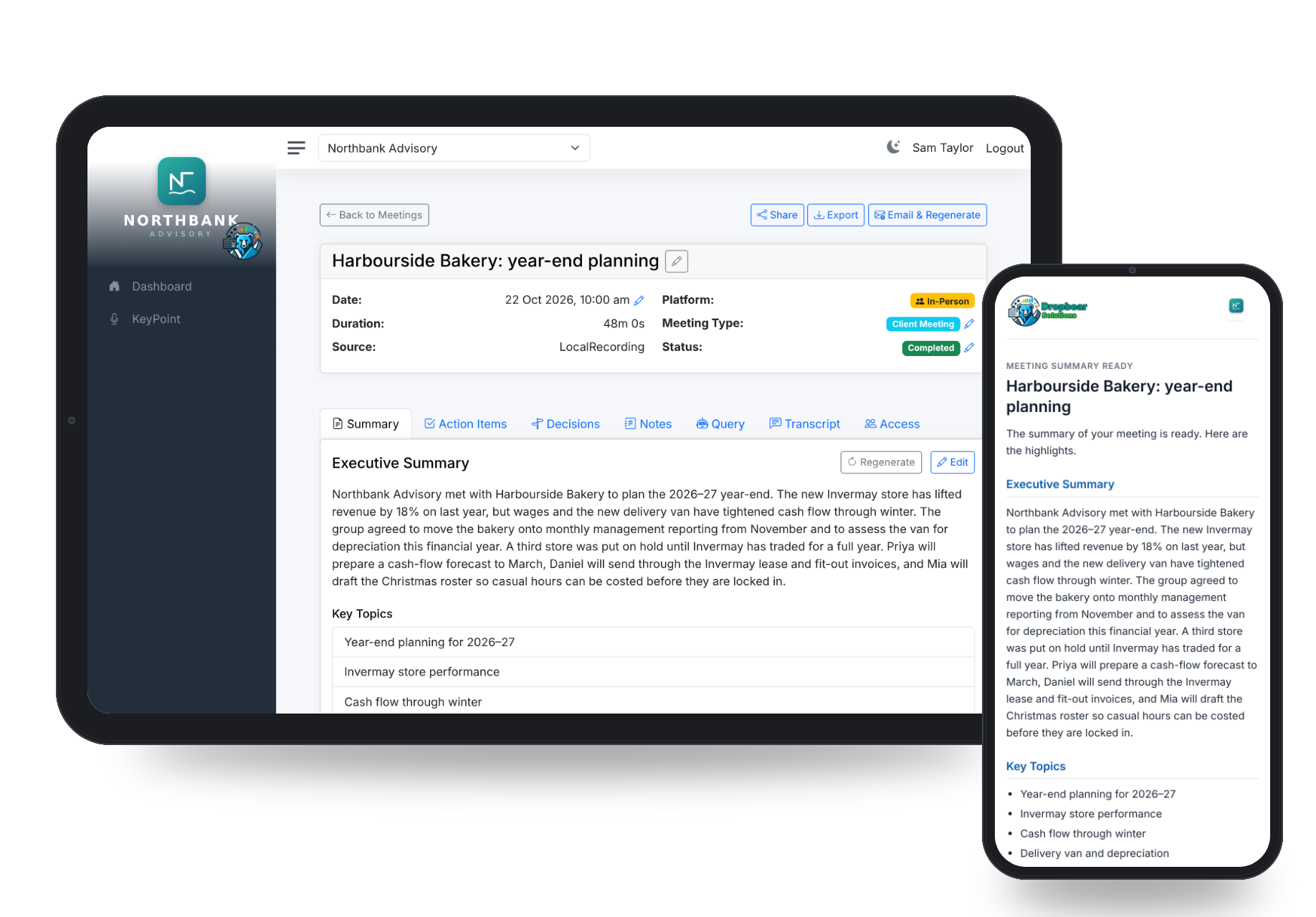
The KeyPoint dashboard on a tablet
A KeyPoint meeting summary on a tablet and the summary email on a phone

Introducing KeyPoint

KeyPoint records your meetings, transcribes them and turns the conversation into something your team can act on.

Every meeting gets an executive summary, its key topics and main discussion points, action items with an owner and a due date, and the decisions that were made, all kept alongside the full transcript.

It runs in the browser on desktop, tablet and phone. Record a meeting in the room or a call playing on your computer, keep recording when there is no internet connection and upload it later, upload an audio file you already have, or capture a Discord or TeamSpeak voice channel. Microsoft 365 calendars sync automatically, so the week’s meetings are always on the dashboard.

When the meeting has been processed, the summary is emailed out automatically. People only see the meetings they ran or were given access to, and administrators decide which KeyPoint features are switched on for their organisation.

KeyPoint

From the conversation to the follow-up.

The Dashboard

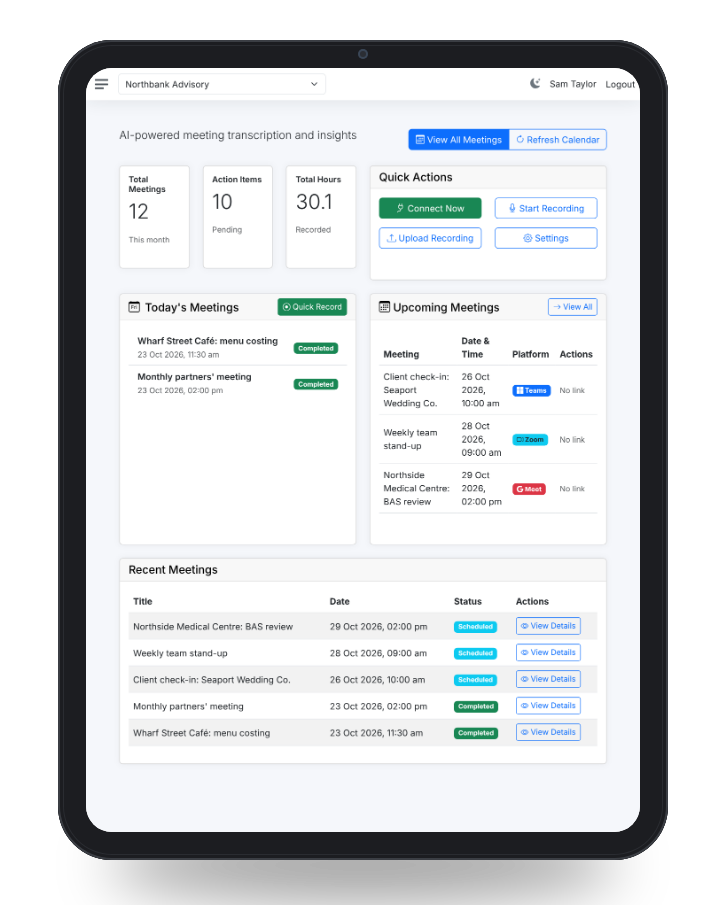
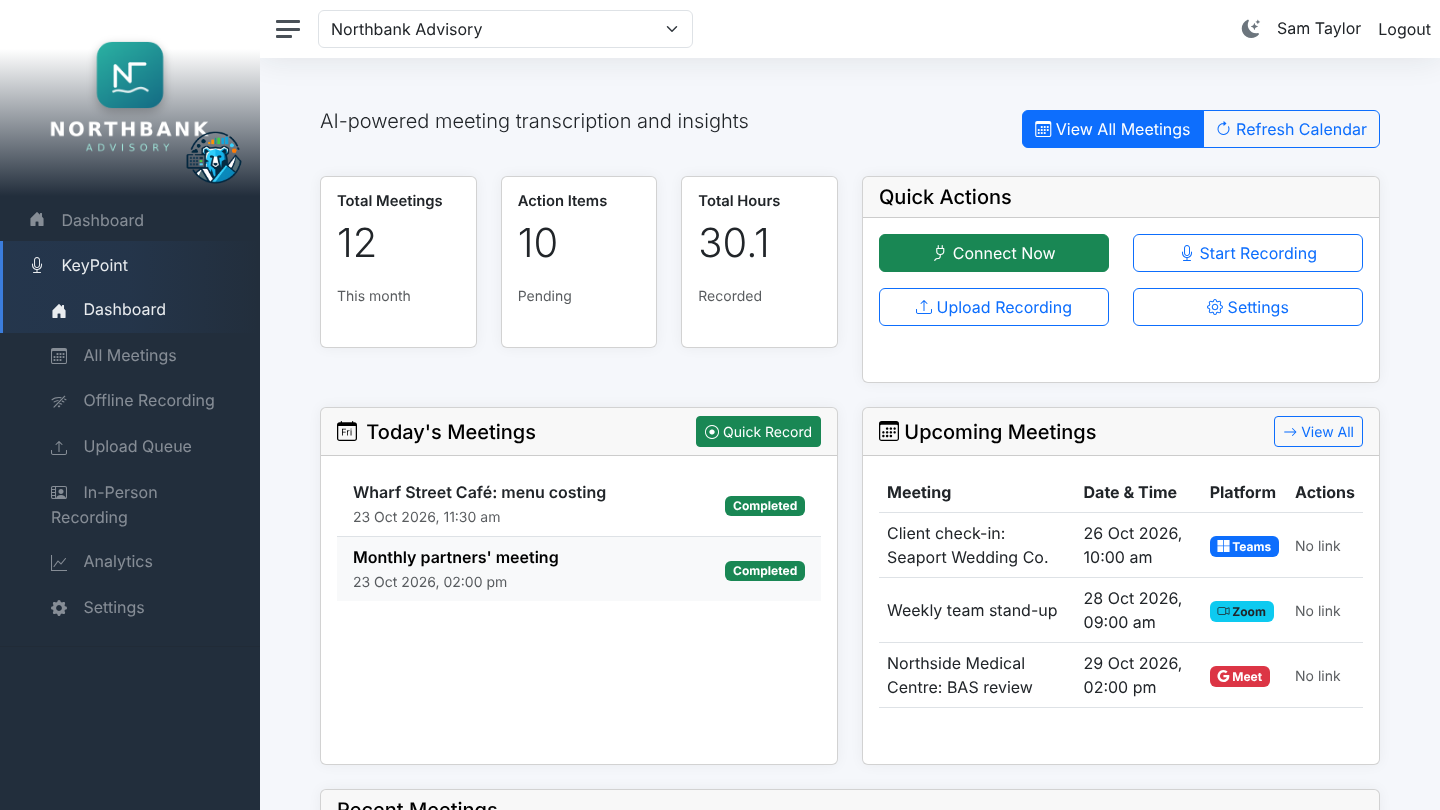
The KeyPoint dashboard showing today’s meetings, upcoming meetings and recent recordings

The KeyPoint dashboard brings your meetings together in one place: how many you have held this month, the action items still pending, the hours recorded, today’s meetings and what is coming up over the next week from your Microsoft 365 calendar. From there you can start a recording, upload one or open any past meeting.

Every meeting has its own page with the summary, action items, notes and the full transcript, and a Query tab where you can ask questions about what was said and get answers drawn from the transcript. The person who ran the meeting can give colleagues from their organisation access at any time.
Recording Meetings

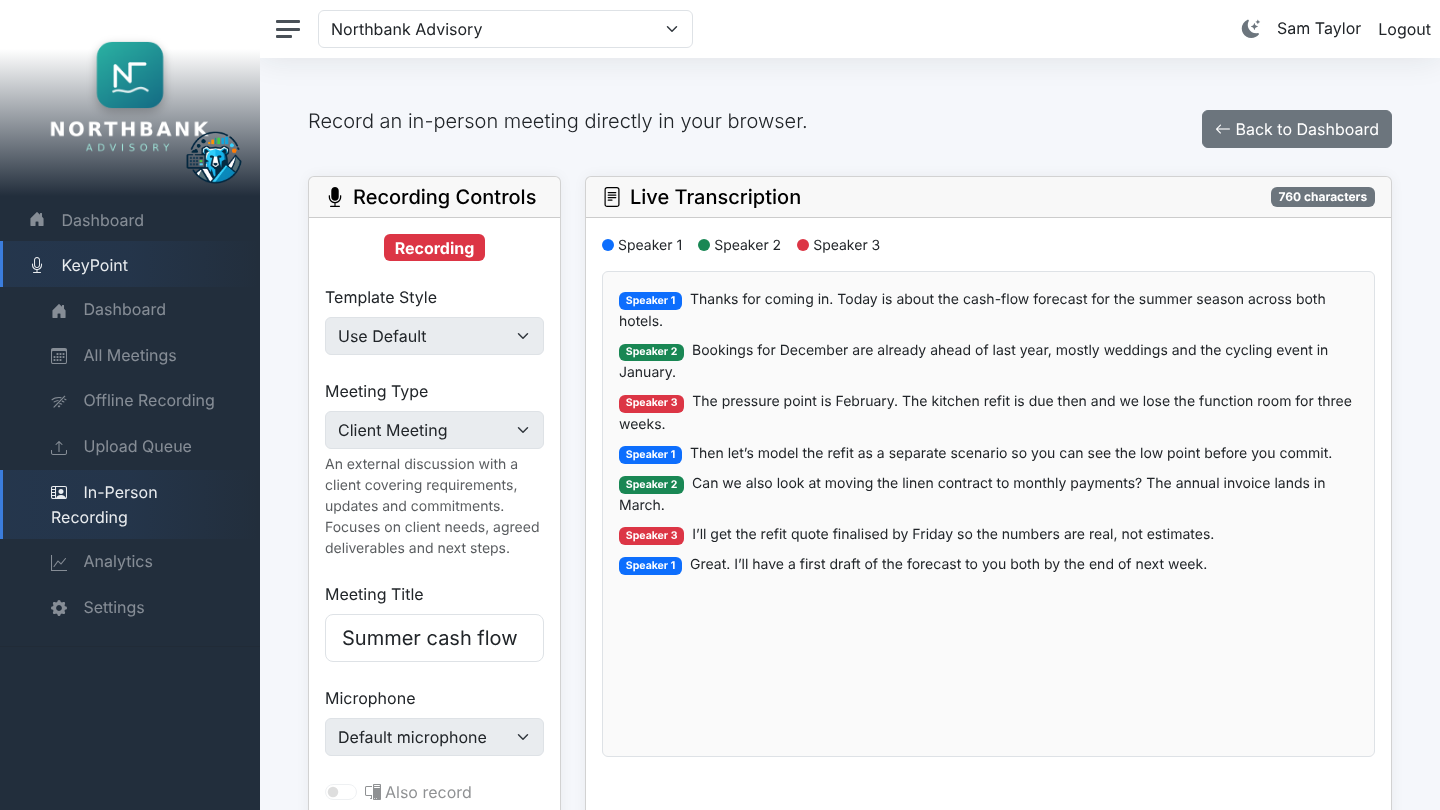
Recording an in-person meeting in KeyPoint with the live transcript and action items

Open KeyPoint in the browser, choose a meeting type and press Record. The audio uploads as you go and is transcribed every 30 seconds, so the conversation appears on screen while the meeting is still running, with each speaker shown separately. Action items are picked up during the meeting too, and you can add or correct them before it ends. In Chrome or Edge, switch on computer audio to capture a Teams, Zoom or Google Meet call playing on your computer at the same time.

No connection? Offline recording keeps the audio safe in your browser and uploads it from the upload queue once you are back online. You can also upload a recording you already have (WAV, MP3, M4A, WebM, OGG or FLAC, up to 500 MB), or connect your own Discord bot or a TeamSpeak server so KeyPoint can record your voice channels.

Transcripts & Speakers

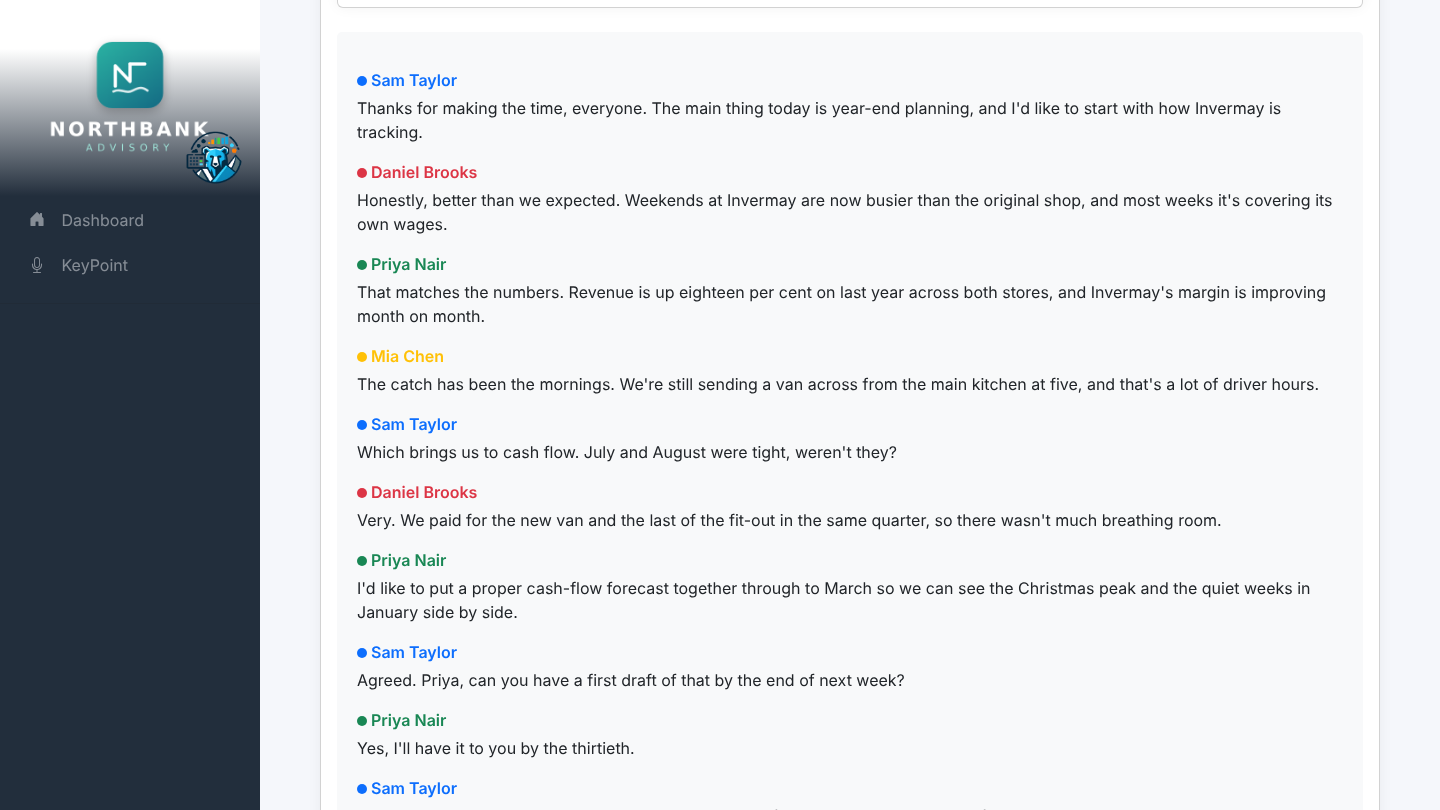
A KeyPoint transcript with each speaker named and colour-coded

Recordings are transcribed with Azure AI Speech by default, with each speaker separated as they talk. When you upload a recording you can pick a different engine instead, including OpenAI GPT-4o Transcribe, Deepgram Nova-3, ElevenLabs, AssemblyAI and Google Gemini, or a locally hosted high-accuracy model.

KeyPoint then reads the conversation to work out who each speaker is and suggests their names, so the transcript shows who said what. If it gets someone wrong, rename the speaker, combine two speakers who turn out to be the same person, or re-run the speaker analysis with one click.

Summaries & Meeting Types

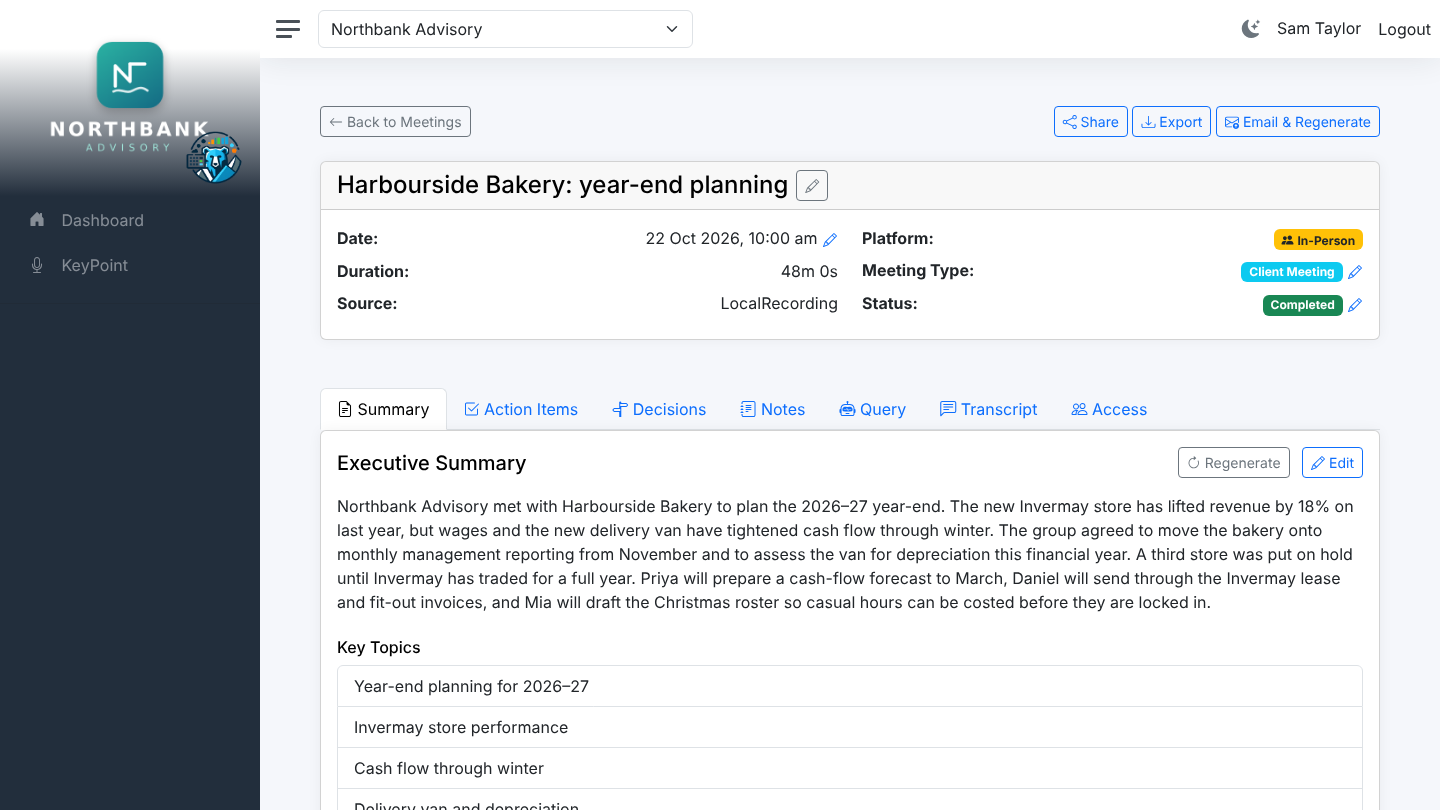
The executive summary and key topics of a meeting in KeyPoint

Once the transcript is ready, KeyPoint uses Azure OpenAI to write an executive summary, list the key topics and main discussion points, note the overall tone of the meeting, and record the decisions that were made with their impact, owner and reasoning. Summaries can be edited by hand or regenerated, and once you have edited a summary it is never overwritten automatically.

Meeting types tailor the output to the conversation. KeyPoint comes with Client Meeting, Performance Review and Internal One-on-One types, each with its own instructions for the summary, action items and notes, and organisations can add their own. Summary templates let you choose which sections appear and how much detail goes into each.

Action Items

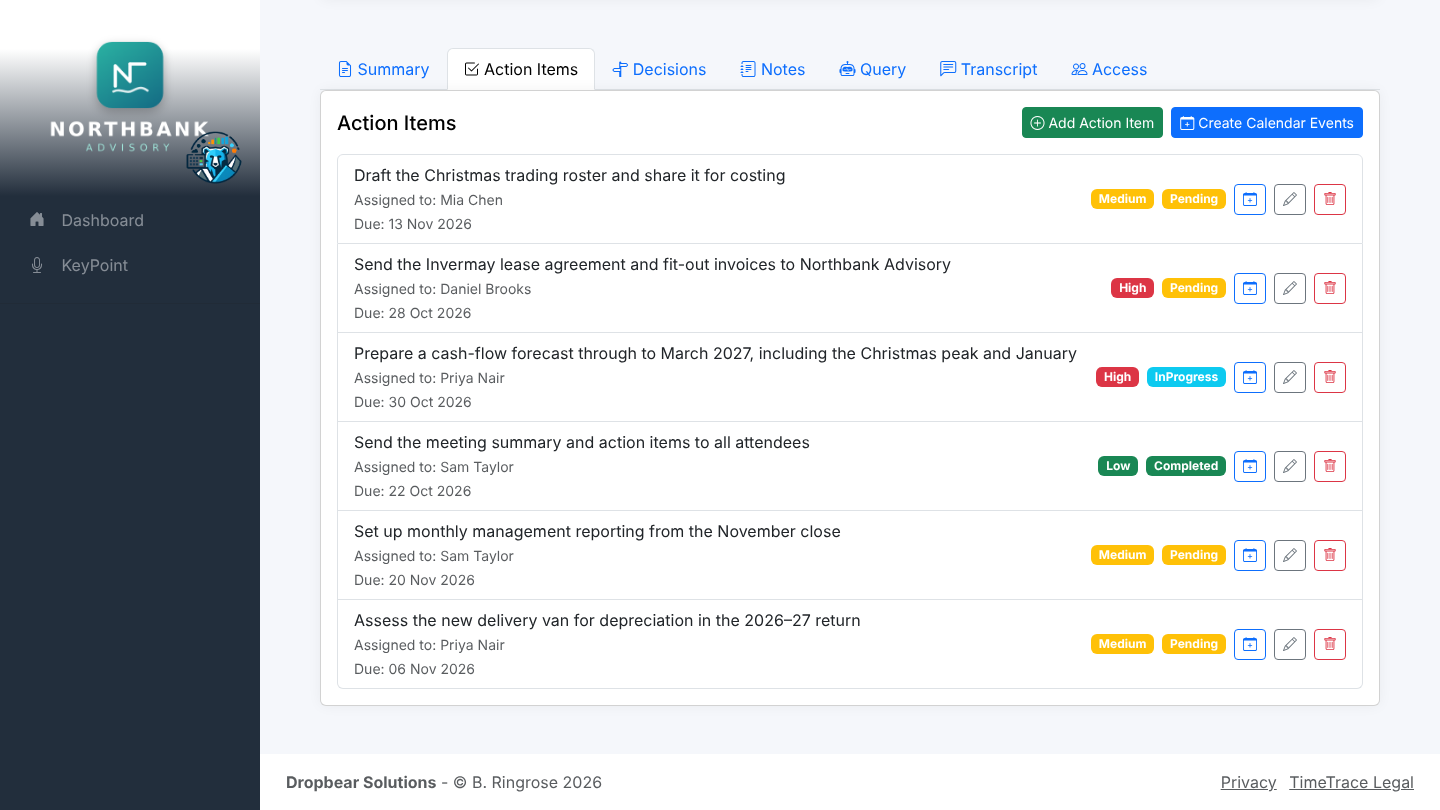
Action items with owners, due dates, priorities and statuses in KeyPoint

Every commitment made in the meeting becomes an action item with an owner, a due date and a priority. Track each one from pending to in progress to completed, and add, edit or remove items as plans change.

Pending action items are counted on the dashboard and listed in the summary email with who owns them and when they are due, so everyone leaves the meeting knowing what they have agreed to do.

Sharing the Outcome

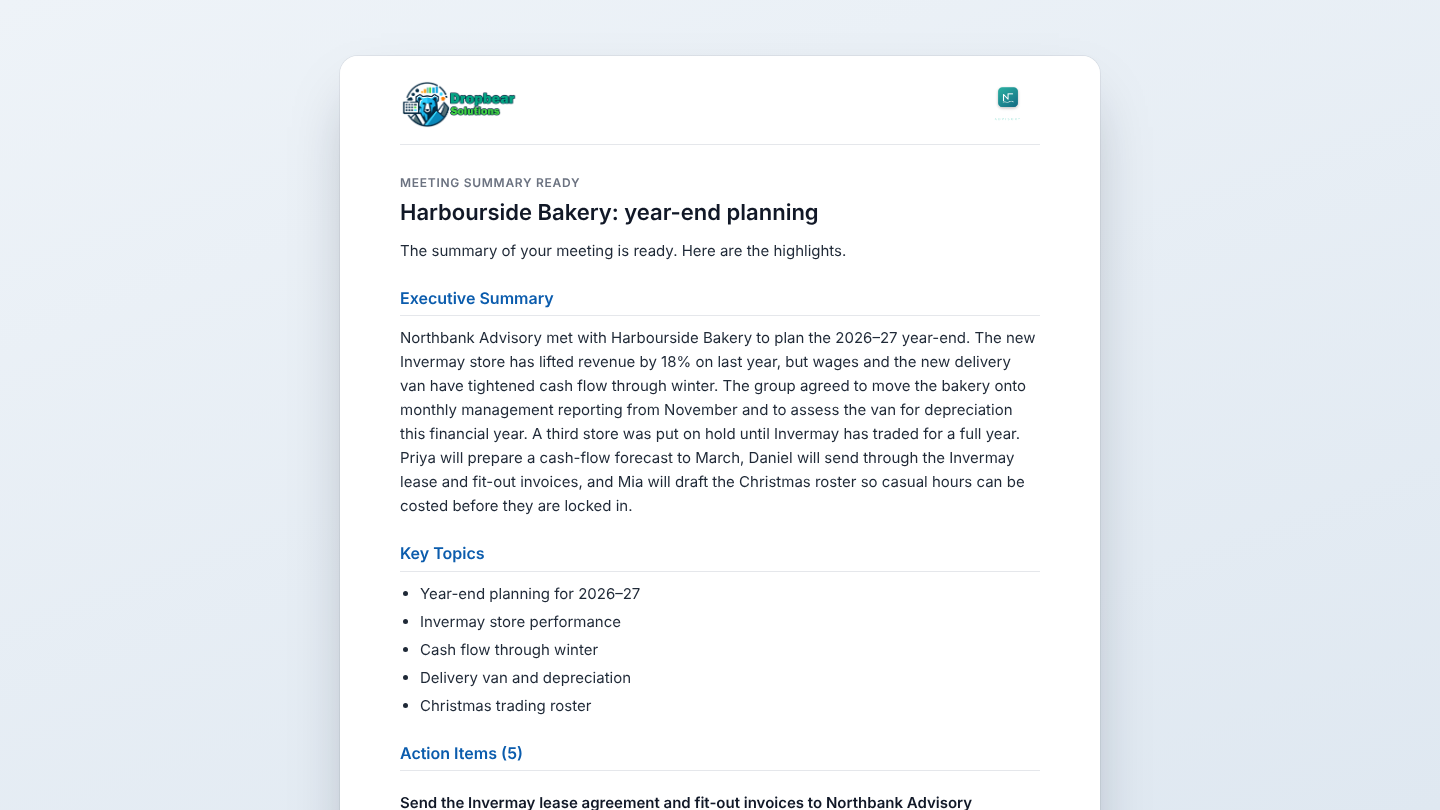
A KeyPoint meeting summary email

When a meeting has been processed, KeyPoint emails the summary automatically: the executive summary, key topics, action items with their owners and due dates, and the key decisions, carrying your organisation’s logo and a link back to the meeting. Summary templates decide how it is delivered: as a plain email, with a PDF or text attachment, or merged into a Word template of your own.

Give colleagues access to a meeting and they can open it in KeyPoint and receive the summary as well. Any meeting can also be exported as a PDF containing the summary, action items, decisions and transcript.

Get in touch

Interested in KeyPoint?

Questions about KeyPoint, pricing or an integration you need? Send a message and we’ll get back to you as soon as possible.